Labels

Showing posts with label MikroTik Tutorial. Show all posts

Port SFP connection between Mikrotik RouterBoard

Development of Internet technology today is very rapid. Previously, people using the Internet are still using the old connection, but now I use a connection fast paced. Technology tools is growing along with the development of existing technologies. Many media used in the distribution of signals, one of which is fiber optic. Fiber optics can be regarded as one form of transmission of the light waves.

Supporting devices for the installation of communications systems using Fiber Optics that Optical connector, pigtail, SFP, etc. This time we will only discuss the SFP. SFP stands for Small Form-Factor Pluggable. SFP is a device that shortly transmit and me-receive signal information with fiber optic media. SFP is a development of Gigabit Interface Converter (GBIC). SFP also known as mini-GBIC. GBIC term means a port that is devoted to dealing with the backbone network with a large bandwidth.


SFP modules can be used on

Block MAC Address Search in Winbox Configuration

Winbox Mikrotik can search / find Mikrotik devices connected to the network PC / our Laptop. With Winbox features we can know the Mac Address, IP Address, Identity Mikrotik, RouterOS version, and its Routerboard types as shown below:


This feature can certainly help us to identify Mikrotik connected to

Tutorial Setting Mikrotik to Connect the Internet

There are several ways that can be taken to Mikrotik connect to the Internet. These methods depend on the modem or the devices used to connect to the Internet.

In general way Mikrotik connect to the Internet is as follows:

1. Make sure the first source of Internet connection. Whether from the ADSL modem or from a USB modem.

2. If the source of a direct Internet connection without first modem settings, such as connection of  modem or 3G Router, which does not need additional settings on the Mikrotik then go to next step.

3. Login to Mikrotik via Winbox -> Go to the menu IP -> DHCP Client -> Add DHCP Client by clicking the

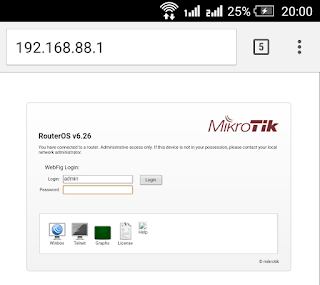
How to setting MikroTik with Android via Webfig

Now, to overcome these limitations we can use Webfig, which use Android Webfig in a very easy and practical because it does not need to install additional applications. We just use the
existing web browser on Android to access and remotely Webfig Mikrotik.

Okay, enough of its preamble, before the start of stale let her go to Tutorial Mikrotik:

1. Make sure you're on WiFi Mikrotik and can be accessed by Android.
2. Connect Android to Wifi Mikrotik.
3. Open the Web browser on Android.
4. Enter the IP address in the Address Bar Browser Mikrotik.


How to Make Load Balancing


Load Balance / Load Balancing Mikrotik is a technique or method to divide the load into multiple lines (links) so that the use of the path (link) to be better. Previous load balancing Mikrotik I've discussed in this article Load Balance / Load Balancing Mikrotik.


Later in this article I will discuss about

How to Setting Mikrotik RB750 with Winbox


Here is how Setting Mikrotik RB750 with Speedy Internet connection. Here dial to its Speedy directly from Mikrotik, do not use an ADSL modem.

1. Please set your ADSL modem to mode 'BRIDGE', so if still mode 'PPPoE' please 'RESET' and resetting the modem.

2. Reset also his Mikrotik RB750 is

Share USB Modem Internet with MkroTik

How to Share USB Modem Internet connection with Mikrotik - Several new types of Mikrotik have already supported USB port that can be used for a variety of things. Device like a USB port on a PC, can be used for

How to Block Website Access using Web Proxy Mikrotik


Mikrotik Web Proxy has several functions, one of them is filtering. Web Proxy filtering feature can limit access to certain content which is requested by the client. You can restrict access to

How to Make Web Proxy in MikroTik


What is Web Proxy?
Web Proxy is an application that mediates between the client and the server, so the client will not deal directly with the servers that exist on the Internet. Mikrotik have a web proxy features that can be

How to Install and Set Mikrotik User Manager


Check whether the User Manager package has been installed on Mikrotik.
Open Winbox, go to System menu -> Packages
If there is no user-manager on the list of packages, it means

Upgrade Router OS MikroTik in Winbox


To upgrade the latest version of Router OS is one thing to be considered by Mikrotik users.  By upgrading Router OS version, then your Mikrotik will get new features as well.  For example, for Mikrotik with Router OS version is 5.2 and

Seting Simple Queue with PCQ on MikroTik


On this occasion we will discuss a bit about bandwidth management in a proxy simple. distribution of bandwidth in mikrotik can be tailored to the needs and abilities, meaning that we can do

How to setting MikroTik RB750r2 hex lite


Some time ago mikrotik has launched the latest generation of RB750 router is mikrotik RB750r2 lite hex that is claimed to have a higher specification than its predecessor. The most prominent change is