Port SFP connection between Mikrotik RouterBoard

Development of Internet technology today is very rapid. Previously, people using the Internet are still using the old connection, but now I use a connection fast paced. Technology tools is growing along with the development of existing technologies. Many media used in the distribution of signals, one of which is fiber optic. Fiber optics can be regarded as one form of transmission of the light waves.

Supporting devices for the installation of communications systems using Fiber Optics that Optical connector, pigtail, SFP, etc. This time we will only discuss the SFP. SFP stands for Small Form-Factor Pluggable. SFP is a device that shortly transmit and me-receive signal information with fiber optic media. SFP is a development of Gigabit Interface Converter (GBIC). SFP also known as mini-GBIC. GBIC term means a port that is devoted to dealing with the backbone network with a large bandwidth.


SFP modules can be used on

Hotspot Authentication Using Active Directory

Active Directory (AD) is a service that is owned by the windows operating system for networks such as Windows 2000 Server, Windows Server 2003, Windows Server 2008, and Windows Server 2012. Active Directory consists of databases and directory services. The database is owned by Active Directory to store all the resources available in the network, such as computers that have been joined to a domain, a list of user accounts and user groups, shared folders, and others.As already known, AAA Mikrotik not only be done on the device itself, but can also use an external database of the RADIUS Server. This time, we will experiment with combining MikroTik with Active Directory on Windows 2003.

Service that can be used to be able to create a centralized AAA server is a component in Windows Internet Authentication Service (IAS). In addition, this service will act as a liaison between MikroTik Router with existing user database in Active Directory using standard RADIUS protocol.

Settings in Windows Server

Usually the IAS service is not yet active component in Windows Server, so it needs to be added and activated first. Click Start -> Control Panel -> Add / Remove Programs -> Networking services


Register components / IAS service in Active Directory so user-friendly in it can later be inserted and

Test Throughput Mode Wireless in MikroTik

In the wireless properties, there are many modes that can be used as needed. Wireless mode function to determine whether to enable the access point (transmitter), repeater, or enable the station (receiver). There are several modes that have almost the same function, call it eg station-bridge mode with station-pseudobridge. Now we will try to do testing mode selection effect on the throughput of data that is passed. Testing using standard band 802.11 B / G / N.

Access Point

There are only two modes that make interface works as a wireless access point. AP-Bridge topology PTMP (point to multi-point) where there are many clients are connected, and topology Bridge mode to PTP (point to point) where there is only one client is served. At this testing time, same station side - the same uses station-bridge mode.


From the results of testing there was no significant difference in throughput. When used to handle one client, throughput both still balanced, between 150Mbs up to 200Mbps up and

Limitations Bandwidth Over Time

Simple queue is a bandwidth management method is the simplest. How easy configuration and results are quite effective. But sometimes we as a network administrator wants custom flexible bandwidth management. For example do bandwidth limitations based on time. If imaginable seems to require the configuration is complex, but it turns out the configuration that must be made quite simple.

Examples of such cases we will do the limitation of bandwidth with the following conditions:
• Working hours are 8:00 to 17:00 with 512Mbps bandwidth allocation.
• After working hours increased to 1Mbps bandwidth allocation, for example employee bonus overtime.
• Saturday - Sunday given bandwidth of 2 Mbps.

For those of us who rarely pay attention to small features may be thinking of the above requirements we would need a scheduler. But actually we do not need the features scheduler, there are parameters in simple queue time. This parameter is used to determine when the rule will be active. For the needs already mentioned above, then we can make the configuration as follows.

First, create a rule to bandwidth limitations on working hours, which is allocated bandwidth of 512kbps, assume for example ip address client will limited is 192 168 230 254. In the bottom of the window there is a simple queue configuration parameter Time. Here we specify when the rule will run queue.


Next create a rule to limitations on weekdays, after

MikroTik With Eternal Proxy

Proxy not a stranger in the world of Mikrotik. Mikrotik itself has proxy feature that can be quite simple. Many users Mikrotik then add external proxy in order to use features that are more complex than internal features of proxy. The question is, whether they have a significant performance difference? In this article we will try to do test the performance of internal and external proxy.

Configuring External Proxy with MikroTik

To test this, we will use an external application proxy that is commonly used, namely Squid. Step-by-step installation and configuration of the application of this squid can we get references on the internet. And do not worry a lot of references that have been using the Indonesian language for this application many users even in Indonesia.
After installation and configuration of Squid is complete, then we will do the setting transparent proxy. This works for all traffic accessing the HTTP (TCP Protocol, Port 80) is deflected into the Proxy server. Configuration of the transparent proxy this we will do in the MikroTik Router using NAT Firewall feature. The steps are as follows:


Go to the menu IP -> Firewall -> Nat -> click the

Setting Bridge and Switch mode

Today many products that have additional Mikrotik Router switch chipset components. This chipset is connected to multiple ethernet ports, which in turn can make some of the works more like a port switch, where the client can use the underlying IP in the same segment. Ethernet connected and the number of switches chipset on each product is different. To find out, should be viewed in detail the device data sheet. This condition can affect the future use and how to configure each device.

For example, the product Cloud Router Switch (CRS) series. The product is a product of the switch can also be configured as a router. All ethernet and SFP (if any) connected on a switch the same chipset. So if you want to really function as a switch, a configuration that can be done is to direct all ether1 ethernet to use as the master port.


There are several products RouterBoard where ether1 regarded as WAN interfaces so

Block MAC Address Search in Winbox Configuration

Winbox Mikrotik can search / find Mikrotik devices connected to the network PC / our Laptop. With Winbox features we can know the Mac Address, IP Address, Identity Mikrotik, RouterOS version, and its Routerboard types as shown below:


This feature can certainly help us to identify Mikrotik connected to

Tutorial Setting Mikrotik to Connect the Internet

There are several ways that can be taken to Mikrotik connect to the Internet. These methods depend on the modem or the devices used to connect to the Internet.

In general way Mikrotik connect to the Internet is as follows:

1. Make sure the first source of Internet connection. Whether from the ADSL modem or from a USB modem.

2. If the source of a direct Internet connection without first modem settings, such as connection of  modem or 3G Router, which does not need additional settings on the Mikrotik then go to next step.

3. Login to Mikrotik via Winbox -> Go to the menu IP -> DHCP Client -> Add DHCP Client by clicking the

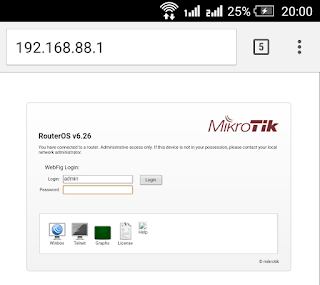
How to setting MikroTik with Android via Webfig

Now, to overcome these limitations we can use Webfig, which use Android Webfig in a very easy and practical because it does not need to install additional applications. We just use the
existing web browser on Android to access and remotely Webfig Mikrotik.

Okay, enough of its preamble, before the start of stale let her go to Tutorial Mikrotik:

1. Make sure you're on WiFi Mikrotik and can be accessed by Android.
2. Connect Android to Wifi Mikrotik.
3. Open the Web browser on Android.
4. Enter the IP address in the Address Bar Browser Mikrotik.


How to Make Load Balancing


Load Balance / Load Balancing Mikrotik is a technique or method to divide the load into multiple lines (links) so that the use of the path (link) to be better. Previous load balancing Mikrotik I've discussed in this article Load Balance / Load Balancing Mikrotik.


Later in this article I will discuss about

How to Setting Mikrotik RB750 with Winbox


Here is how Setting Mikrotik RB750 with Speedy Internet connection. Here dial to its Speedy directly from Mikrotik, do not use an ADSL modem.

1. Please set your ADSL modem to mode 'BRIDGE', so if still mode 'PPPoE' please 'RESET' and resetting the modem.

2. Reset also his Mikrotik RB750 is

Share USB Modem Internet with MkroTik

How to Share USB Modem Internet connection with Mikrotik - Several new types of Mikrotik have already supported USB port that can be used for a variety of things. Device like a USB port on a PC, can be used for

Basic of MikroTik Firewall


What is a Firewall?
A firewall is a device whose function is to examine and determine which data packets can get in or out of a network. With this capability, firewall plays a role in protecting the network from attacks originating from outside the network. The firewall implements filtering packet and thereby provides security functions that are used to manage data that flow to, from and through the router. For example,

How to Block Website Access using Web Proxy Mikrotik


Mikrotik Web Proxy has several functions, one of them is filtering. Web Proxy filtering feature can limit access to certain content which is requested by the client. You can restrict access to

How to Make Web Proxy in MikroTik


What is Web Proxy?
Web Proxy is an application that mediates between the client and the server, so the client will not deal directly with the servers that exist on the Internet. Mikrotik have a web proxy features that can be

How to Install and Set Mikrotik User Manager


Check whether the User Manager package has been installed on Mikrotik.
Open Winbox, go to System menu -> Packages
If there is no user-manager on the list of packages, it means

Upgrade Router OS MikroTik in Winbox


To upgrade the latest version of Router OS is one thing to be considered by Mikrotik users.  By upgrading Router OS version, then your Mikrotik will get new features as well.  For example, for Mikrotik with Router OS version is 5.2 and

Basic of Networking


Classification of Computer Network:
LAN (Local Area Network) is a network of computers that are connected to a computer server by using specific topologies, typically used in building area or distance that is no more than 1 km.
MAN (Metropolitan Area Network) is a network of

Description and Function of Router


A router is a device that has the ability to pass the IP packets from one network to another network that may have a lot of lines between them. Routers that are connected to the Internet network participate in a distributed routing algorithm to determine the best path for the IP packets  to pass through from one system to another system. Routing process is

Commands in MikroTik Router OS


Basic commands for Mikrotik Router OS – It is definitely confusing for those of you who are just learning to use Mikrotik with the command (command line) used in Router OS. Whereas, many basic commands of Mikrotik are important to be known so that user will utilize the Router OS well. Actually, the basic commands of  MikroTik Router OS have not much different from